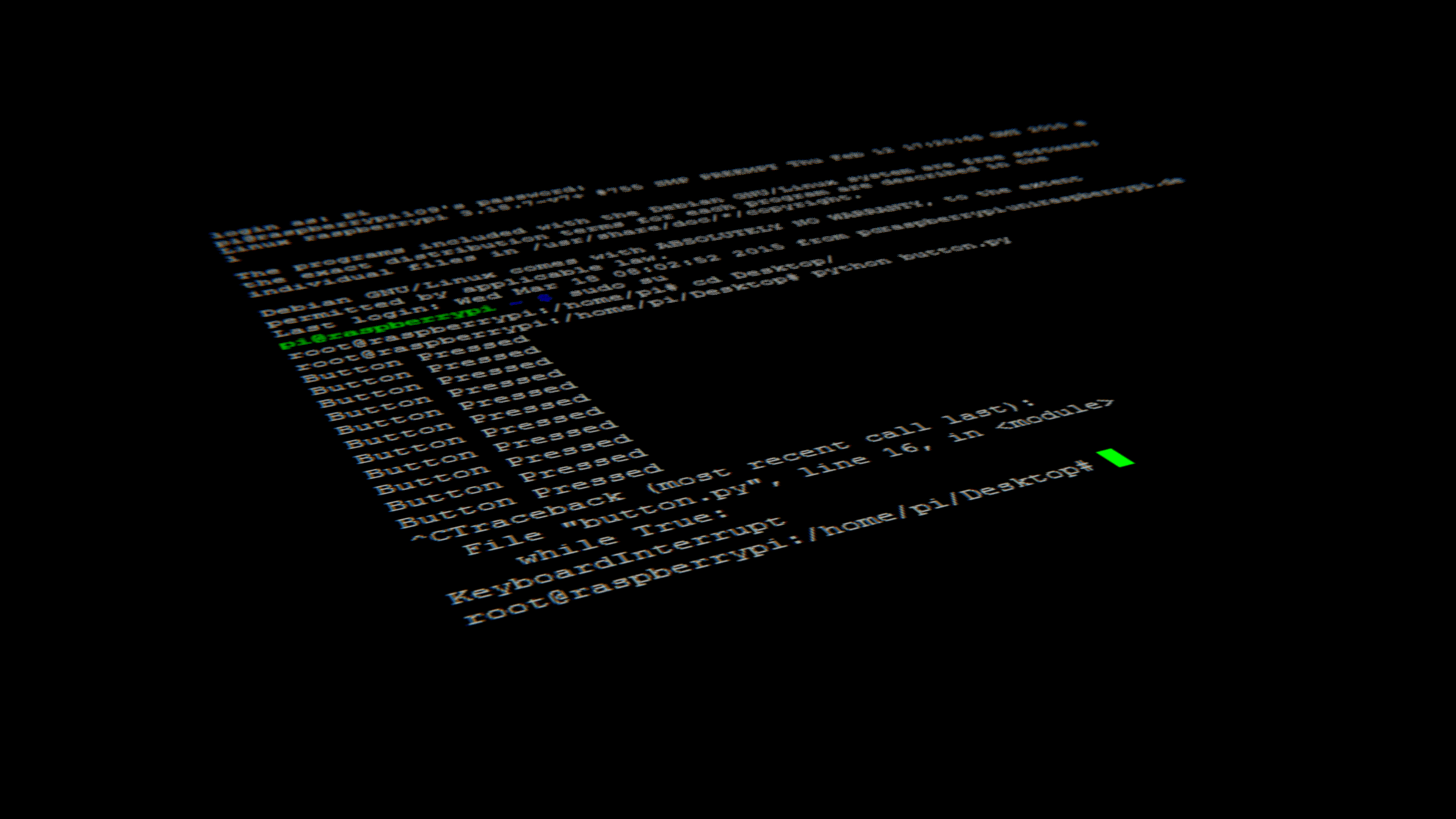
Terminal commands every Dev should know
Published: June 15, 2025
Master the command line and you master your workflow.
🧠 Why the Terminal Matters
Whether you're building websites, shipping APIs, or deploying apps — the terminal is your best friend. It’s not just for “hackers.” The command line is where:
- Real automation happens
- Debugging gets powerful
- Speed and control live
Here are my go-to terminal commands every developer should know — beginner or pro.
⚡ cd, ls, pwd
Navigate like a ninja
cd project-folder/– change into a directoryls -la– list all files (even hidden) with detailspwd– show current working directory
🧹 rm, mv, cp, mkdir, touch
Manage files quickly
rm -rf folder/– delete folder and contents ⚠️mv old.js new.js– rename or move filescp index.html backup.html– copy filesmkdir assets– creates directorytouch README.md– create an empty file
🔍 grep, find, cat, less
Search like Sherlock
grep "function" main.js– find text in filesfind . -name "*.js"– find all JS filescat filename– print file contentsless filename– scrollable version ofcat
💡 top, htop, ps, kill
Monitor and manage processes
top– show running processeshtop- a friendlier version (install it!)ps aux– list all processeskill -9 1234- kill process by PID
🌍 curl, ping, whois, dig
Interact with the network
curl https://api.github.com– make HTTP requestsping google.com- test internet connectivitywhois domain.com– find domain informationdig github.com- DNS lookup
⚙️ chmod, chown
Permissions and ownership
chmod +x script.sh– make a file executablechown user:group file.txt- change file ownership
📦 git
Version control life saver
git initgit statusgit commit -m "msg"git log --oneline- clean log viewgit diff- see what’s changed
🧪 Bonus Tools I Love
alias– create custom commandhistory | grep clone- find old commandsclear- clear the terminalctrl + r- reverse search your command history 🔥
🏁 Final Thoughts
Knowing terminal commands:
- Saves time
- Makes you more resourceful
- It’s like having superpowers… but for your keyboard.